Using the Show Controls
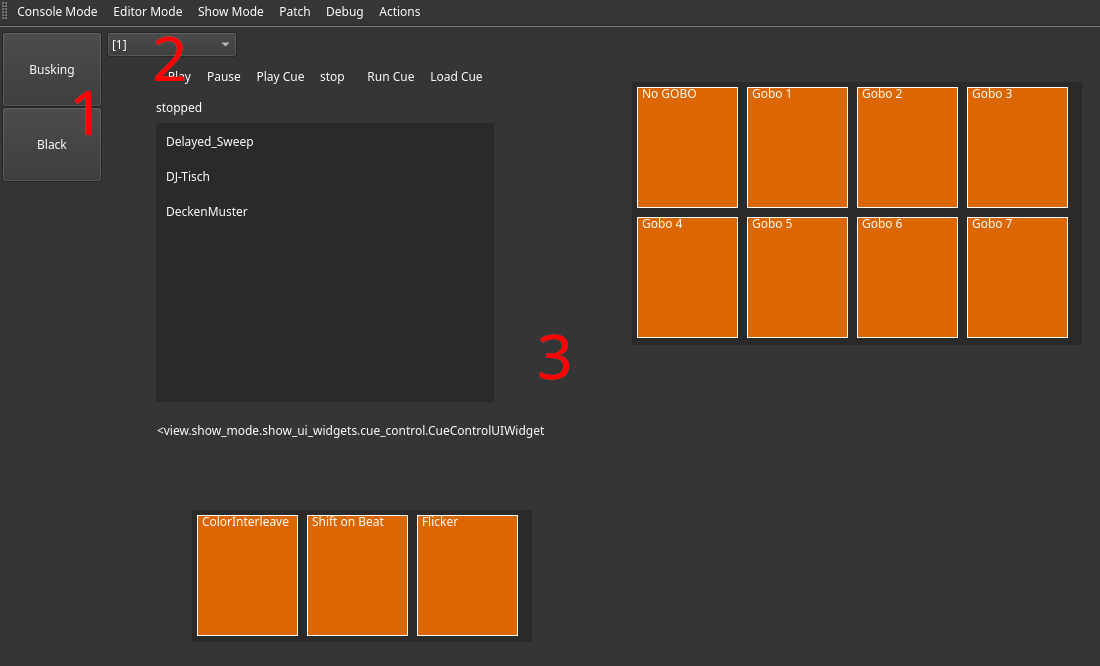
The show UI view displays any active show UI. They can be built using the editor. On the left hand side, there is a button group allowing switching between scenes (1). Each button displays the scene name it switches to. The button of the current active scene (if any) has a green background color.
Next to the scene switching buttons, a combo box (2) is displayed, allowing selection of the show UI page displayed in this view. If multiple monitors are detected, available UI pages will be distributed automatically between them.
The reamaining screen space (3) is filled with the content of the show UI page.
Additional windows
While the Show Mode Tab allows changing scenes and displays a show UI page, it is possible to configure additional windows displaying pages.
They can be enabled using the Editor tab in the settings dialog.
This might come in handy, if you have multiple monitors and would like to have a different tab open while still being able to interact with your UI. Furthermore, this enables you to have different pages open at the same time.
UI windows do not provide automatic scene switching buttons but will remember the pages they have been assigned for a given scene and will switch back to them as soon as the user switches back to this scene.