Navigation
- Getting Started
- Show File Basics
- Building a GUI
- Scene default DMX Values
- Remote Control
- Patching View
- Events
- Using Effects
- Editor View
- Using the Control Desk
- Debugging a Showfile
- Console View
- Using the CLI
- Using and Editing Macros
- Trigonometric Editor
- Sequence Filter
- Lua Scripting API
- Using Filters
- Filter Overview
- Cue Filter
- Constants
- Wave Generator Filters
- Trigonometric Function Filters
- Time Filters
- Scripting Filters
- Fader Input Filters
- Effect Filters
- Debugging Filters
- Constant Filters
- Color Manipulation Filters
- Arithmetic Filters
- Adapter Filters
- Filter Index
Command Line Interface
The command line interface is available as:
- Macros and embedded commands
- An embedded terminal in the GUI
- If enabled, through a telnet port open on port
2929.
accessing CLI using the GUI
By pressing CTRL+T, or by using the menu bar action under Tools, the GUI terminal can be toggled on or off.
By default it is displayed at the bottom of the main window but can be moved around the edges of the window or detached entirely.
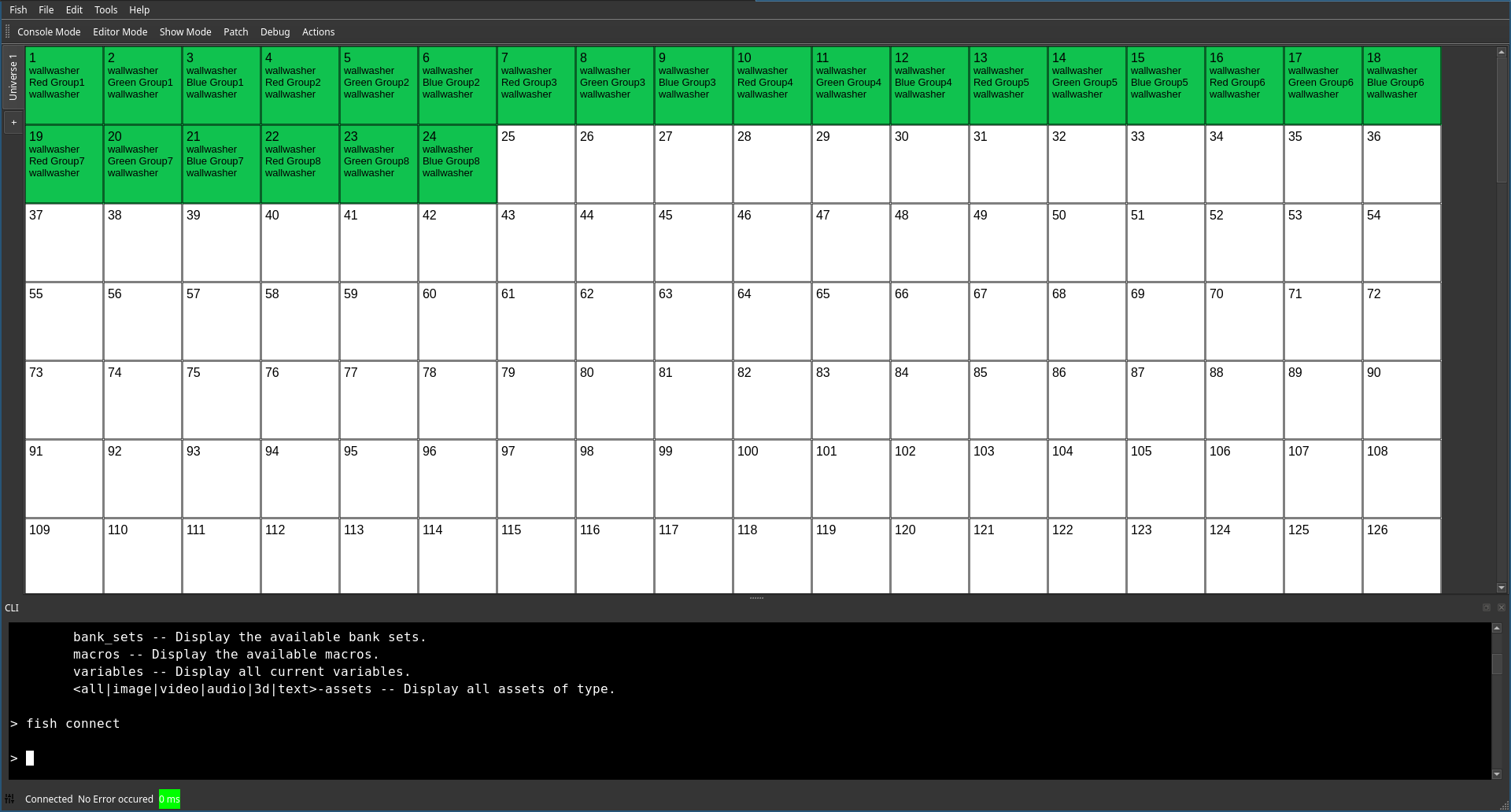
Known Limitations After toggling the terminal, the scroll bar jumps to the bottom of the terminal and the user needs to scroll to the cursor position manually.
Remote Access
The remote access port can be enabled or disabled in the settings.
Once enabled, it provides the same access to the CLI as a local user and no authentication is required through TCP port 2929.
Therefore, this feature should be used with caution and only in air gapped networks or with carefully crafted firewall rules.
However, this behavior is required to integrate with other production equipment, which usually does not know the concept of computer security.
Advanced features
While the used command language isn’t as feature-rich as a modern shell, it provides some advanced features.
- Comments are started by
# - The set instruction can be used to set variables. If one for example issues ´set var foo´, the value
foocan be retrieved at a later stage by writing$var. - Basic control flow can be managed using
if. The syntax looks as follows:if <Expression> then <command>. Expressions are build using<value A> <comparison> <value B>. While values can be anything, supported comparisons are<,>,=,!=,andandor.
Command Documentation
In general you can type help <command or topic> to get a brief introduction.
However, here is a list of special documentation for selected commands: